Your first site
From an empty folder to a website in five steps, with folders and documents only.
1. Share an empty folder
In Google Drive, make a folder and share it: Anyone with the link, as Viewer. In Nextcloud, make a read-only share link. Copy the link; it is the one setting Foldocs needs. See Share a folder.
2. Add a document called intro
In the folder, make a document called intro, in lowercase. It is not a page of its own but the top of your home page. Write it with the paragraph styles from the style menu (Normal text in Google Docs, the Styles gallery in Word):
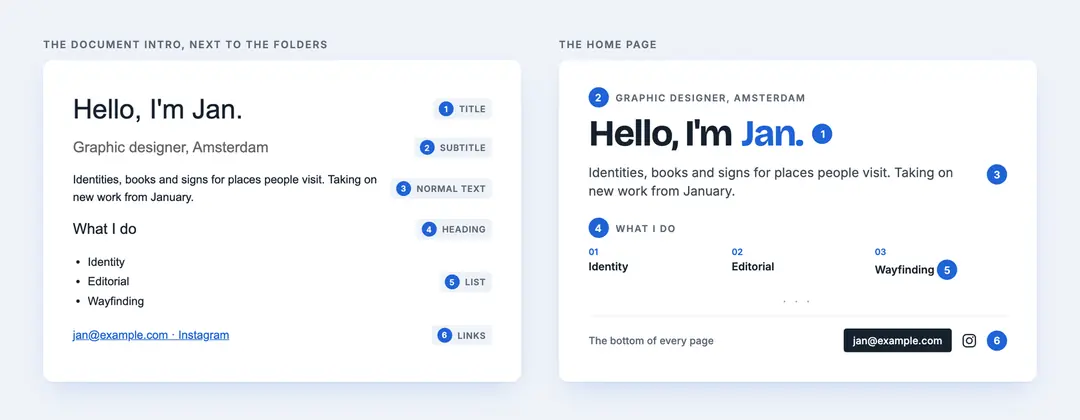
In intro | On the home page |
|---|---|
| A line in the Title style | The big headline |
| A line in the Subtitle style | The small label above it |
| A paragraph of normal text | The introduction |
| A heading and a bulleted list (optional) | Numbered topics, named by the heading |
| Links to your email and profiles (optional) | The footer: an email button and your profiles |
Optional, next to intro: a photo, which becomes the portrait beside the headline, and documents such as About and Contact, which become pages in the menu. See Folders become sections for all of them.
3. Add a folder per section
Next to intro, add a folder for each part of your site: 1 Work, 2 Writing. Each is a row on the home page, a page of its own and an item in the menu. The number sets the order and isn't shown.
A section can have an intro of its own, too: it opens the section's page the way the first one opens the home page. Its Title renames the section, its Subtitle is the line under it, and the rest comes before the section's pages. Every intro is optional.
4. Add documents: one per page
Every document in a section folder is a page. Its Title line is the page's title, its Subtitle line the summary on its card, and the rest is the page: headings, lists, links, tables. See Documents become pages.
5. Add images, in two ways
| Where | What it becomes |
|---|---|
| In a document: Insert → Image | Part of that page, as wide as you made it; the first one is also its card's picture |
| As a file in a section folder | A photo page of its own, dated by the camera, in the section's row |
| As a file in the shared folder | The portrait on the home page |
The result
- 📁 My site
- 📄 intro: the home page's opening, not a page
- 📄 About: optional
- 🖼️ me.jpg: optional, the portrait
- 📁 1 Work
- 📄 intro: optional, opens the section's page
- 📄 A first project: a page, with images inside
- 🖼️ Studio.jpg: a photo page
That is the whole site. Once it is online, it follows the folder: a change appears about five minutes after you last edited the file. Everything in the folder is published, so keep drafts elsewhere. Next: Put it online.